DxQSO captures every contact from the loggers you already use, coaches you with the new Co-Operator, which tells you when something you need is on the air, and helps your whole club collaborate — live.
Works alongside the tools and services hams already use
LoTW®QRZ LogbookN1MM Logger+Ham Radio DeluxeMacLoggerDXGridTrackerWSJT-XHam2K PoloSmartSDRADIF
Amateur Radio Has Changed
More software. More devices. More complexity.
Many operators no longer have one radio, one computer, and one logbook. They use desktop logbooks, mobile apps, contest software, POTA tools, remote stations, LoTW®, QRZ, and ADIF files from everywhere.
The result is fragmented operating history, duplicated effort, missed confirmations, and award progress that is harder to see than it should be.
Multiple Logbooks
Contacts spread across desktop, mobile, contest, and specialty logging applications.
Multiple Services
LoTW® and QRZ confirmations are valuable, but operators still have to remember to check.
Multiple Activities
POTA, contests, remote operation, FT8, and specialized apps all generate separate logs.
Multiple Goals
DXCC, WAS, grids, bands, and club activity all need a connected view of the data.
Why DxQSO Exists
The intelligent platform for modern amateur radio
DxQSO is not another logbook you have to switch to. It connects the logbook applications, QSL services, mobile devices, and community tools you already use — then understands your activity and tells you what's worth your time.
Bring it together
DX-TQSL signs for LoTW® exactly like the TQSL you already use, then uploads to DxQSO automatically in the background. We keep your QRZ logbook in two-way sync, and on mobile the Network Listener captures QSOs live from your logging software. Manual ADIF upload is available on every platform, too.
Keep it current
Continuously monitor LoTW® and QRZ so confirmations and LoTW®-based award progress are updated without waiting for you to open a logbook and request a download.
Make it useful
Turn scattered logbook data into notifications, achievements, social activity and the Co-Operator, which knows what you still need and tells you when it is on the air.
New · The Co-Operator is live
It keeps an ear on the bands, so you don’t have to.
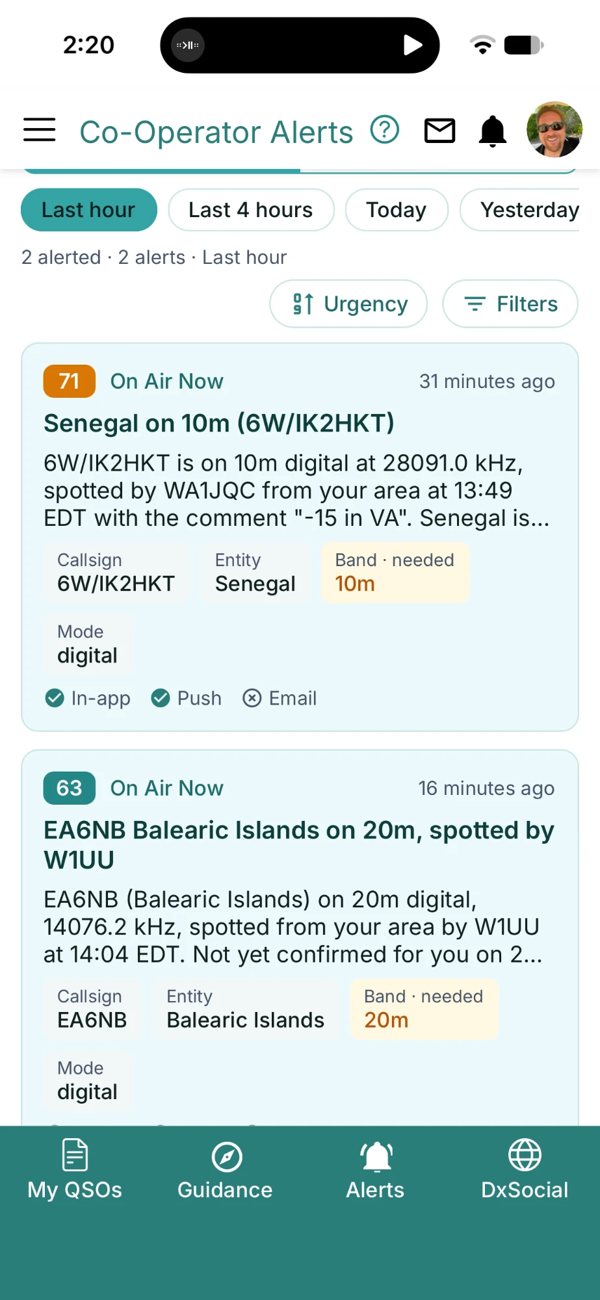
Your logging program is what you use in the shack while you’re operating. The Co-Operator is for the rest of the day. It learns how you operate from your own log, knows everything you have confirmed, and watches the DX cluster around the clock from your part of the world. When something shows up that is actually worth your time, it tells you, in plain language, in the app or by email. Everything else stays quiet.
On the Air Now — an entity, band, mode or 6 m grid you need is spotted and workable
Now or Never — a rare one you need is on the air outside your usual hours
DXpeditions — a DXpedition you need is active, or about to start
Award Assistance — you are one away, or a confirmation completes an award
Parks on the Air — a park you need is being activated
Your Watch List — callsigns and entities you name yourself, heard within a minute
Best Window — the band and time that usually carries what you need from your area
Club & Friends — club members on the air together, and your live event score
Log Health — a download that stopped, or QSOs that failed to upload
Your Week on the Air — a weekly digest of what it found, and what is coming up
You stay in charge. Your hours for each channel, an urgency range, a daily limit (10 per channel by default), the same thing at most once every six hours, and one-click Pause. Every 👍 or 👎 in Guidance teaches it what to send you.
Part of DxQSO Membership ($29.99 a year). Every signed-in operator sees the Co-Operator menu; Members get Guidance and Alerts.
ON THE AIR NOW
“Senegal on 10m is spotted from your area. It is not yet confirmed for you.”
AWARD ASSISTANCE
“One state left for WAS on 20m, and it is being spotted now.”
PARKS ON THE AIR
“A park you need is being activated on 20m CW.”
YOUR WEEK ON THE AIR
“Here is your week: what you worked, what the Co-Operator found, and what is coming up.”
This is the first generation. Next: text message alerts, a deeper understanding of your operating style, and looking further ahead from band conditions and your own history.
10:245G ▪ 100%
10:24
Saturday, May 18
🏆
DxQSO
New DXCC Confirmed
3B9 Rodriguez Island · LoTW®
Just now
★
DxQSO
New Grid Confirmed
FN42 · Grid #312
2 minutes ago
📨
DxQSO
QSL Received
JA1ABC · LoTW® · 21.350 MHz
5 minutes ago
Continuous Monitoring
Your logbook works even when you are away
Many logbook applications can download LoTW® confirmations. The difference is that the operator usually has to open the application, request the download, wait for the sync, and then review what changed.
DxQSO continuously monitors LoTW® and QRZ in the background and notifies you when something important happens.
New DXCC entities, states, and grids
New LoTW® and QRZ confirmations
Award progress changes
Push and email notifications
DX-TQSL
LoTW® down? Your log waits — then goes.
Install DX-TQSL over your existing TQSL. It works exactly the way you’re used to — and if LoTW® can’t be reached, your signed log is kept safe and sent automatically with your next upload. Free, for Mac and Windows, with no account needed.
Many logging programs upload each QSO to LoTW® the moment you log it — so when LoTW® is down, that usually means a failed-upload error after every contact. With DX-TQSL, your logging program is told each log is safe, not that it failed, so you keep logging and uploading straight through the outage. The backlog goes out with your first upload after LoTW® is back.
And when you’re ready, a free DxQSO login backs up every certificate and station location to the cloud and puts your QSOs on your phone.
✓ Installs over your existing TQSL — your logger keeps working
✓ No DxQSO account required
✓ Keep logging through LoTW® outages — no upload errors
✓ Pending Uploads tab — see what’s waiting, or send it now
✓ Free login: cloud backup of certificates & stations
✓ Free login: restore on a new computer in minutes
✓ Free login: DxQSO uploads queued and re-sent, too
✓ Free login: your QSOs on iOS & Android
Works With Existing Software
Keep the software you already know
DxQSO does not ask operators to abandon their favorite logging applications. It connects the applications and services they already use, then adds repository, monitoring, mobile, social, and insight layers on top.
DXKeeper
Ham Radio Deluxe
Log4OM
MacLoggerDX
N1MM Logger+
Ham2K Polo
HamRS
GridTracker
WSJT-X
N3FJP
SkookumLogger
RUMlogNG
World Radio League
SmartSDR
VarAC
Winlink
QRZ Logbook
LoTW®
DxSocial
Amateur radio is better together
See what your friends and club members are doing in real time. Share operating activity and achievements, celebrate milestones, and use friendly competition to keep operators active.
Operating activity and achievements
Club and group activity feeds
POTA activations, contests, and event coordination
Leaderboards for DXCC, WAS, grids, and QSO totals
DxSocial Feed
Live
W1AW
W1AW confirmed DXCC #203 🏆
3B9 Rodriguez Island · LoTW®
❤️ 12 · 💬 4
2m
K9XYZ
K9XYZ just confirmed WAS on 10M ⭐
Alaska was the last one · CW
❤️ 8 · 💬 2
8m
VE3AB
VE3AB activated K-1234 🌲
47 QSOs · 20M/40M FT8 and SSB
❤️ 15 · 💬 6
14m
Use Cases
DxQSO for every type of operator
The details matter. DxQSO adapts to how you operate — pick the style that sounds most like you.
Select your operating style below ↓
Access your logbook from anywhere
Your complete operating history is available from web and mobile. View QSOs, check progress, receive alerts, and see community activity whether you are at the shack, in the field, or on the road.
Web & mobileAchievement trackingWorks on any device
LoTW® users — meet DX-TQSL
Install DX-TQSL over your existing TQSL and keep signing exactly as you do today — no account needed. When LoTW® can’t be reached, DX-TQSL keeps your signed log and sends it with your next upload — so a logger that uploads after every QSO just keeps going, with no failed-upload errors. Add a free DxQSO login for cloud backup of your certificates and station locations, and your QSOs on your phone.
Store-and-forwardNo upload errorsNo account neededTQSL-compatibleCloud backup with a free login
QRZ Logbook users
DxQSO works alongside QRZ, monitoring QSL activity and bringing QRZ and LoTW® data together with ADIF uploads from other sources into one repository.
QRZ monitoringLoTW® + QRZNo workflow change
POTA operators
Upload your full POTA log right from your phone or tablet in the field — no computer, no waiting until you get home. Or capture every contact live with the Network Listener as you log it. Either way, QSOs land in DxQSO duplicate-safe and forward to LoTW® and QRZ automatically, so you finish the activation on-site. No more lost logs.
Upload from the fieldReal-time Network ListenerDuplicate-safeFinish on-site
Contest operators
Bring contest logs home without losing context. Use virtual stations and tags to separate contest activity while keeping everything searchable in one repository.
Virtual stationsCustom tagsMerged history
Clubs and groups
DxSocial gives clubs a way to keep members engaged between meetings and events through activity feeds, leaderboards, shared achievements, and friendly competition.
Club feedsLeaderboardsShared wins
Remote operators
Remote stations, home stations, and mobile setups can all feed the same repository, reducing ADIF transfers, version conflicts, and accidental overwrites. The Network Listener captures QSOs in real time from N1MM UDP-compatible apps like SmartSDR and SDR Control, so contacts from your remote session upload the moment you make them.
Digital and specialized apps generate valuable contacts that often remain isolated — DxQSO brings them all into one searchable operating history. For FT8 and FT4, GridTracker feeds the Network Listener so your contacts upload in real time as you work them. For VarAC and Winlink, export your log and drop it into ADIF Upload.
Real-time FT8/FT4GridTrackerVarAC & Winlink via ADIF
Stop managing logbooks. Start enjoying radio.
Bring together every logbook, monitor confirmations automatically, protect your LoTW® setup, and let the Co-Operator tell you when something you need is on the air.
DxQSO is a cloud-based ham radio logbook repository that brings together your QSOs from every logging application, automates your LoTW® and QRZ synchronization, and keeps you connected to a community of operators who share your passion for the hobby.
Instead of maintaining separate logbooks across different apps, DxQSO gives you one central place to collect, organize, sync, and view your entire operating history — from any device, at any time.
What DxQSO does
Consolidates your logbooks — Upload QSOs from N1MM, Ham Radio Deluxe, WSJT-X, mobile apps, and any ADIF-compatible application into one unified repository without creating duplicates.
Syncs with LoTW® and QRZ — DxQSO continuously monitors LoTW® and QRZ Logbook and applies new QSL confirmations to your logbook automatically.
Alerts you to milestones — Get an instant push notification the moment you confirm a new DXCC entity, US state, or grid square.
Backs up DX-TQSL — Your callsign certificates and station location data are stored securely in the cloud so you can restore or migrate your TQSL setup in minutes.
Connects you to a community — Share operating activity and achievements with friends via DxSocial, follow fellow operators, and compete on friendly leaderboards.
DxQSO is made up of two components
🌐
DxQSO.org
The website and mobile app where you view your logbook, manage settings, track achievements, and connect with the community.
💻
DX-TQSL
A Windows and Mac application that replaces TQSL, uploads QSOs to both LoTW® and DxQSO in real time, and backs up your certificates and station data to the cloud.
Who is DxQSO for?
DxQSO is built for any licensed amateur radio operator who wants to:
Access their complete logbook from any device
Stop missing LoTW® and QRZ confirmations
Know instantly when a new DXCC entity, state, or grid is confirmed
Consolidate logs from multiple applications without losing data
Share operating activity with friends and fellow operators
Creating a DxQSO account takes about two minutes. You can start with a free Freemium account and upgrade to a Member subscription at any time.
Step-by-step
1
Go to dxqso.net and click Get Started in the top navigation.
2
Enter your callsign, email address, and a password. You can also sign up using your Google or Facebook account.
3
Enter your LoTW® credentials (optional but recommended). DxQSO uses these to pull your existing QSO and QSL history from LoTW® in the background. Your credentials are stored securely and never shared.
4
Check your email for a verification link and click it to activate your account.
5
You're in. Your LoTW® history will begin syncing in the background — this can take a few minutes for large logs.
LoTW® credentials are optional at signup. You can add them later under Profile → LoTW® Sync. However, entering them during signup lets DxQSO pull your full QSO and QSL history immediately.
What happens next
After creating your account, the recommended next step is to install DX-TQSL on your logging computer. This enables real-time QSO uploads and cloud backup of your certificates and station information.
Getting Started
Quick Setup Guide
Last updated June 2026 · 5 min read
This guide walks you through the complete initial setup of DxQSO from account creation to your first real-time QSO upload. Most users complete the full setup in under 15 minutes.
Standard setup steps
1
Create your DxQSO account at dxqso.net. Enter your LoTW® credentials during signup so your QSO and QSL history starts syncing immediately.
2
Download and install DX-TQSL on your logging PC or Mac. Find the download link under the Download menu on dxqso.net.
3
Log in to your DxQSO account from within DX-TQSL using the DxQSO Login button. This links DX-TQSL to your account and triggers an automatic backup of your certificates and station information.
4
Export ADIF files from your logbook applications and upload them at Logbook → ADIF Upload. This imports your historical logbook data into DxQSO. You can upload from multiple apps — DxQSO merges them without creating duplicates.
5
Set your QSL sync schedule at LoTW® Sync. Choose how often you'd like DxQSO to pull new confirmations from LoTW® — daily, weekly, monthly, or quarterly.
6
Configure your notification preferences to receive push alerts when new QSLs arrive or when you confirm a new DXCC entity, state, or grid square.
Going forward: Once DX-TQSL is installed and logged in, your logging application will upload QSOs to both LoTW® and DxQSO in real time — no further action required.
Getting Started
Freemium vs Member
Last updated June 2026 · 2 min read
DxQSO is available in two tiers. The Freemium plan is free forever and covers the core logbook and LoTW® sync features. The Member plan adds the Co-Operator, achievement alerts, advanced analytics, and priority support.
The Member plan is a single annual membership — US $29.99/year. You can upgrade at any time from Account → Subscription.
DX-TQSL
What is DX-TQSL?
Last updated June 2026 · 3 min read
DX-TQSL is a Windows and Mac application, built on ARRL's open-source TrustedQSL, that you install over your existing TQSL. If you currently use TQSL to upload QSOs to LoTW®, DX-TQSL is a drop-in replacement — your existing logging application requires no changes whatsoever, and you don't need a DxQSO account to use it.
What DX-TQSL adds
Without an account:
Store-and-forward for LoTW® — If LoTW® can't be reached or doesn't answer properly, DX-TQSL keeps your signed log and sends it automatically with your next successful upload. Your logging program is told the log is safe rather than that it failed, so if it uploads to LoTW® after every QSO you can keep logging through an outage without upload errors. A log LoTW® actually rejects is not retried — it is kept aside so you can see what happened.
Pending Uploads tab — See every log waiting to be sent, and send it with Send to LoTW Now once LoTW® is answering again.
With a free DxQSO login:
Real-time logbook upload — Every QSO your logging app sends to LoTW® is simultaneously uploaded to your DxQSO cloud repository. If DxQSO is unavailable, the upload is queued and re-sent automatically.
Cloud certificate backup — Your callsign certificates are automatically backed up to your DxQSO account. If they're ever lost or you move to a new computer, they restore automatically.
Cloud station location backup — All your station location data is backed up and can be restored on any PC or Mac with just your DxQSO login.
Automatic updates — DX-TQSL updates itself automatically when new versions of TQSL are released by the ARRL, typically within two weeks.
No changes to your logging application are required. DX-TQSL installs in the same location as TQSL and uses the same filename. From your logging app's perspective, nothing has changed.
Supported operating systems
Windows 10 and 11
macOS 12 (Monterey) and later
DX-TQSL
Installing DX-TQSL on Windows
Last updated June 2026 · 4 min read
DX-TQSL installs over your existing TQSL installation. Your current certificates, station locations, and TQSL settings are preserved. The process takes about two minutes.
Before you begin: Close your logging application and any open instance of TQSL before running the installer.
Installation steps
1
Log in to dxqso.net and go to Download → Download DX-TQSL. Select the Windows installer (.msi).
2
Run the downloaded installer (.msi file). If Windows shows a SmartScreen prompt, click More info → Run anyway.
3
Review the license agreement and click Next to accept.
4
Accept the default installation path (this is the same location as your existing TQSL). Click Install.
5
When the installation completes, launch DX-TQSL.
6
Click DxQSO Login / Register on the main screen and log in with your DxQSO account credentials — or choose Skip - use as TQSL only if you don’t want to sign in now. Signing in links DX-TQSL to your account and triggers an automatic cloud backup of your certificates and station data.
Signing in is optional. To use DX-TQSL just like TQSL, choose Skip - use as TQSL only on the sign-in window — signing and uploading to LoTW® never need a DxQSO account. Sign in when you want cloud backup and your QSOs in your DxQSO logbook; nothing goes to DxQSO until you do.
DX-TQSL
Installing DX-TQSL on Mac
Last updated June 2026 · 4 min read
DX-TQSL installs over your existing TQSL installation on macOS. Your current certificates, station locations, and TQSL preferences are preserved. The process takes about two minutes.
Before you begin: Quit your logging application and any open instance of TQSL before running the installer.
Installation steps
1
Log in to dxqso.net and go to Download → Download DX-TQSL. Select the macOS installer (.pkg file).
2
Open the downloaded .pkg file and follow the installer prompts. DX-TQSL installs to /Applications/TrustedQSL — the same location as your existing TQSL — so your logging apps keep working with no changes.
3
Open DX-TQSL from your Applications folder. The installer is signed and notarized by Apple, so it opens without any security overrides.
4
When DX-TQSL opens, click DxQSO Login / Register on the main screen and log in with your DxQSO account credentials — or choose Skip - use as TQSL only if you don’t want to sign in now. Signing in links DX-TQSL to your account and triggers an automatic cloud backup of your certificates and station data.
Signing in is optional. To use DX-TQSL just like TQSL, choose Skip - use as TQSL only on the sign-in window — signing and uploading to LoTW® never need a DxQSO account. Sign in when you want cloud backup and your QSOs in your DxQSO logbook; nothing goes to DxQSO until you do.
If you don't have TQSL installed
If this is a fresh Mac with no prior TQSL installation, DX-TQSL will start with an empty certificate store. After logging in to your DxQSO account, your certificates and station locations will be automatically restored from your cloud backup — provided you have previously backed them up from another computer.
DX-TQSL
Logging In to DxQSO from DX-TQSL
Last updated June 2026 · 2 min read
Signing in to DxQSO is optional: without it, DX-TQSL works just like TQSL, with store-and-forward for LoTW®. Sign in when you want cloud backup of your certificates and station locations and your QSOs in your DxQSO logbook. You only need to do it once — after that, DX-TQSL stays connected to your account automatically, even after restarts and updates.
How to log in
1
Open DX-TQSL on your PC or Mac.
2
Click the DxQSO Login / Register button on the main screen (or find it under the DxQSO Configuration tab).
3
Enter your DxQSO email address and password and click Login.
4
You will see a "Successfully Logged In!" confirmation. The DxQSO login button will now show your callsign or username.
What happens after login: DX-TQSL immediately backs up your certificates and station locations to your DxQSO account. Going forward, every QSO your logging application sends to LoTW® will also be uploaded to your DxQSO cloud repository in real time.
If you don't have a DxQSO account yet
Click the Register link on the login form inside DX-TQSL. This opens your web browser to the DxQSO account creation page. After creating your account, return to DX-TQSL and log in.
Logging out
You can log out of DxQSO from the DxQSO Configuration tab at any time. After logging out, QSOs will continue to be sent to LoTW® but will no longer be uploaded to your DxQSO repository until you log in again.
DX-TQSL
Managing Certificates
Last updated June 2026 · 3 min read
Callsign certificates are issued by the ARRL and are required to sign and upload QSOs to LoTW®. DX-TQSL automatically backs up your certificates to your DxQSO account and restores them if they are ever lost or you move to a new computer.
Viewing your certificates
Your installed callsign certificates are shown in the Callsign Certificates tab of DX-TQSL. Each certificate shows your callsign, the DXCC entity, and its expiry date.
You can also view and manage your cloud-backed certificates from the DxQSO website at Download → DX-TQSL Config Backup.
Automatic cloud backup
When you log in to DxQSO from DX-TQSL, your certificates are automatically backed up to your account. Backups are also created automatically whenever:
A new certificate is installed
A certificate is renewed or superseded
You manually trigger a backup from the DX-TQSL File menu
Automatic restore
If DX-TQSL detects that your certificate store is empty — for example after a system reinstall or on a new computer — it will automatically restore your most recent certificate backup from DxQSO after you log in. No manual action is required.
Manually backing up certificates
1
In DX-TQSL, click File → Upload to DxQSO: Backup Station Locations, Certificates and Preferences.
2
DX-TQSL will confirm the backup was successful.
Requesting a new certificate from ARRL
If you need a new certificate — for example for a new callsign or after your existing certificate expires — use the standard ARRL certificate request process from within DX-TQSL under Callsign Certificates → Request New Callsign Certificate. DX-TQSL will back up the new certificate automatically once it is installed.
Note: You do not need to export or save .tq6 files manually. DxQSO handles certificate backup and restore automatically once you are logged in.
DX-TQSL
Managing Station Locations
Last updated June 2026 · 3 min read
Station locations define where you are operating from and are required by LoTW® to sign QSOs correctly. Each location includes your callsign, DXCC entity, grid square, ITU zone, CQ zone, and other details. DX-TQSL backs up all your station locations to DxQSO automatically.
Viewing your station locations
Your station locations are listed in the Station Locations tab of DX-TQSL. You can also view and manage them from the DxQSO website under Profile → Station Locations.
Creating a new station location
1
In DX-TQSL, go to the Station Locations tab and click Add.
2
Work through the station location wizard, entering your callsign, DXCC entity, grid square, and operating zones.
3
Give the location a descriptive name (e.g. Home Station, POTA Field, Contest Remote).
4
Click Save. The new location is backed up to your DxQSO account automatically.
Station location types in DxQSO
DxQSO distinguishes between two types of station locations:
LoTW® Stations — locations that have a matching callsign certificate and can be used to sign QSOs for LoTW® upload.
DxQSO Stations — virtual stations used to organize your logbook within DxQSO. These do not require a certificate and are used for grouping QSOs from different operating activities (POTA activations, contest entries, remote setups, etc.).
Syncing station locations from DxQSO
If you have set up station locations on the DxQSO website, DX-TQSL can sync them to your local installation. Go to File → Restore from DxQSO to pull your latest station configuration from the cloud.
DX-TQSL
Backup & Restore
Last updated June 2026 · 3 min read
DX-TQSL automatically backs up your complete TQSL environment — callsign certificates, station locations, and preferences — to your DxQSO account every time something changes. You can also trigger a manual backup at any time, and restore any backup version from the DxQSO website.
Automatic backups
Backups happen automatically whenever:
You log in to DxQSO from DX-TQSL for the first time
A new certificate is installed or renewed
A station location is created or modified
You manually trigger a backup
Triggering a manual backup
1
In DX-TQSL, go to File → Upload to DxQSO: Backup Station Locations, Certificates and Preferences.
2
DX-TQSL will confirm the backup completed. You can view the backup in your DxQSO account under Download → DX-TQSL Config Backup.
Restoring your configuration
To restore your most recent backup — for example after a system reinstall or crash:
1
Install DX-TQSL on the PC or Mac (see Windows or Mac instructions).
2
Log in to your DxQSO account from DX-TQSL. Your certificates and station locations will restore automatically.
Restoring an older backup version
DxQSO keeps a history of all your configuration backups. To restore an older version:
1
Go to dxqso.net → Download → DX-TQSL Config Backup.
2
Find the backup version you want to restore and click Download. This downloads a .tbk backup file.
3
In DX-TQSL, go to File → Restore from DxQSO: Restore Station Locations, Certificates and Preferences and select the downloaded file.
DX-TQSL
Moving to a New Computer
Last updated June 2026 · 2 min read
One of the biggest advantages of DX-TQSL over standard TQSL is how easy it is to move to a new computer. There's no need to export .tq6 certificate files, no hunting through old email for certificate backups, and no risk of losing your station data. Your entire TQSL environment is stored in the cloud and restores automatically.
Setting up DX-TQSL on a new computer
1
On the new computer, go to dxqso.net → Download → Download DX-TQSL and download the installer for Windows or Mac.
2
Run the installer and follow the prompts.
3
Open DX-TQSL and click DxQSO Login / Register.
4
Log in with your DxQSO credentials. That's it. Your callsign certificates and station locations are automatically restored from your cloud backup.
No .tq6 files needed. DxQSO stores your certificates securely in the cloud. You never need to manually export or import certificate files when moving computers.
Setting up DX-TQSL on an additional computer
The same process works for adding DX-TQSL to a second or third computer — for example a laptop, a remote station PC, or a shack rebuild. Install DX-TQSL, log in to your DxQSO account, and your complete setup is restored automatically.
DX-TQSL
Updating DX-TQSL
Last updated June 2026 · 1 min read
DX-TQSL updates itself automatically. When a new version is available — either a DX-TQSL update or a new ARRL TQSL release — DX-TQSL will notify you and prompt you to update the next time you open it.
Automatic update checks
Each time DX-TQSL starts, it checks for available updates in the background. If an update is available you will see a notification at the top of the DX-TQSL window. Click Update Now to download and install it.
ARRL TQSL releases
When the ARRL releases a new version of TQSL, DX-TQSL is typically updated within two weeks. Your logging application does not need any changes — DX-TQSL handles the update transparently.
Manual update check
To check for updates manually, go to Help → Check for Updates in DX-TQSL.
Your data is safe during updates. Updates never affect your certificates, station locations, or DxQSO connection. Your cloud backup also means you can always restore if anything unexpected happens.
Your Logbook
Uploading ADIF Files
Last updated June 2026 · 3 min read
ADIF upload lets you import your logbook history into DxQSO from any logging application that can export ADIF format — which is virtually all of them. Use this to load historical QSOs, combine logs from multiple apps, or add QSOs from POTA activations, contests, or specialized tools.
How to upload an ADIF file
1
Export an ADIF file from your logging application. In most apps this is under File → Export → ADIF.
2
On dxqso.net, go to Logbook → ADIF Upload.
3
Click Choose File, select your ADIF file, and click Upload.
4
DxQSO processes the file in the background. You can monitor progress on the ADIF Upload page — large files may take a few minutes.
What happens to existing QSOs
DxQSO uses intelligent duplicate detection when processing ADIF uploads:
If a QSO in the file already exists in DxQSO, the existing record is updated with any new field data from the uploaded file.
If a QSO in the file does not exist, it is added as a new record.
No duplicates are created, even if you upload the same file multiple times.
POTA and contest logs: You can safely reload your entire POTA log after every activation, or re-upload a contest ADIF after corrections. DxQSO will update existing records without creating duplicates.
Supported file formats
.adi — standard ADIF format
.adif — extended ADIF format
Most logging applications export one of these formats. If your application exports in a different format (e.g. Cabrillo for contest logs), export as ADIF where possible or contact support.
Your Logbook
Real-Time Upload via DX-TQSL
Last updated June 2026 · 2 min read
Once DX-TQSL is installed and you're logged in to your DxQSO account, every QSO your logging application sends to LoTW® is simultaneously uploaded to your DxQSO cloud repository in real time — without any additional configuration or manual steps.
How it works
Your logging application communicates with DX-TQSL the same way it always has — DX-TQSL is a transparent replacement for TQSL. The difference is that when DX-TQSL receives a QSO to sign and upload to LoTW®, it also captures the full logbook record — all fields — and sends it to DxQSO at the same time.
From your logging app's perspective, nothing has changed. No configuration changes are needed in your logging application.
Compatible logging applications
Real-time upload works with any logging application that uses TQSL to upload to LoTW®, including:
DXKeeper (DXLab Suite)
Ham Radio Deluxe
Log4OM
MacLogger / MacLoggerDX
SkookumLogger
RUMlogNG (Mac)
N3FJP
World Radio League (WRL) — via ADIF upload
WSJT-X (via GridTracker)
N1MM Logger+ — export ADIF and sign it in DX-TQSL, or stream contacts in real time through the N1MM Listener
Any other TQSL-compatible application
What if I don't use LoTW®?
DX-TQSL can upload QSOs to DxQSO even if you don't upload to LoTW®. In the DxQSO Configuration tab of DX-TQSL, you can set the LoTW® upload option to Do not upload to LoTW® while keeping DxQSO uploads active. QSOs will be sent to your cloud repository without being signed for LoTW®.
Your Logbook
Viewing & Searching QSOs
Last updated June 2026 · 2 min read
Your complete logbook is available at My QSOs → Summary on dxqso.net and from the DxQSO mobile app. QSOs are listed in reverse chronological order with key fields visible at a glance.
The QSO list
Each row in the QSO summary shows:
Contact date and time (displayed in your local timezone)
Callsign of the station worked
Band and frequency
Mode (FT8, SSB, CW, etc.)
DXCC entity
QSL status — LoTW® confirmed contacts are highlighted in green
Logbook source (which app uploaded the record)
Viewing QSO details
Click any QSO row to expand the full logbook detail view, which includes all fields uploaded from your logging application — grid square, RST, power, notes, contest exchange fields, and more. From the detail view you can also click the callsign to open the operator's QRZ.com profile.
Searching for a specific QSO
Use the search bar at the top of the QSO summary to search by callsign, DXCC entity name, or any other text field. Results update as you type.
Your Logbook
Filtering & Sorting
Last updated June 2026 · 2 min read
The filter panel in My QSOs → Summary lets you narrow your logbook view to exactly the QSOs you're looking for. Filters can be combined — for example, show all FT8 QSOs on 20m in the last 30 days that have been confirmed on LoTW®.
Available filters
Date range — filter by a start date, end date, or preset range (today, last 7 days, last 30 days, this year)
Callsign — show QSOs with a specific callsign or partial callsign
Band — filter by band (160m, 80m, 40m, 20m, 15m, 10m, etc.)
Mode — filter by mode (FT8, SSB, CW, RTTY, etc.)
DXCC entity — show all QSOs with a specific country or territory
QSL status — show only confirmed QSOs, only unconfirmed, or all
Station — filter by virtual station (Home, POTA, Contest, Remote, etc.)
Sorting
Click any column header in the QSO list to sort by that field. Click again to reverse the sort order. The default sort is by QSO date descending (most recent first).
Your Logbook
Duplicate Detection
Last updated June 2026 · 2 min read
DxQSO automatically detects and handles duplicate QSOs so you never need to worry about uploading the same log twice. Whether you're reloading a POTA activation log, re-uploading after corrections, or combining logs from multiple apps, the result is always one clean record per contact.
How duplicate detection works
When you upload an ADIF file or a QSO arrives via DX-TQSL, DxQSO checks whether a matching QSO already exists in your repository. A match is determined by:
Callsign of the contacted station
QSO date and time
Band
Mode
If a match is found, the existing record is updated with any new or changed field data from the incoming QSO. The logbook source field is updated to reflect the most recent upload. No duplicate record is created.
Practical examples
POTA: You can re-upload your entire POTA activation log after every activation without worrying about previous entries being duplicated.
Multiple apps: If you log in N1MM for contests and Ham Radio Deluxe for general operating, you can upload both without creating duplicates for the same QSO.
Corrections: Export and re-upload an ADIF after correcting a typo — DxQSO will update the affected records.
Your Logbook
Downloading Your Logbook
Last updated June 2026 · 2 min read
You can download your complete DxQSO logbook at any time from Download → Download Logbook Data. Fields are automatically mapped to the format of your target logging application.
How to download
1
Go to Download → Download Logbook Data on dxqso.net.
2
Select your target logbook application format from the dropdown. DxQSO automatically maps your logbook fields to the format expected by that application.
3
Optionally set a date range to download only QSOs from a specific period.
4
Click Download. An ADIF file will be generated and downloaded to your computer.
5
Import the downloaded file into your logging application using its standard ADIF import feature.
Supported download formats
DxQSO supports download in ADIF format compatible with all major logging applications including Ham Radio Deluxe, N1MM, MacLogger, and others. Field mappings are applied automatically based on the selected target application.
Your data is always yours. There is no lock-in with DxQSO — you can download your complete logbook at any time in standard ADIF format.
Your Logbook
Virtual Stations
Last updated June 2026 · 2 min read
Virtual stations let you organize your logbook into separate operating contexts — without physically separate logbooks. A virtual station might represent your home shack, a POTA activation at a specific park, a contest entry, or a remote station. All QSOs remain in your single consolidated logbook but can be viewed and filtered by station.
Use cases for virtual stations
POTA activations — create a virtual station for each park you activate (e.g. K-1234 Acadia). Filter your logbook by that station to see only QSOs from that activation.
Contest operating — create a virtual station per contest (e.g. CQ WW CW 2025). Upload your contest ADIF and assign it to that station.
Remote stations — separate QSOs from your home shack and your remote setup.
Multiple callsigns — if you operate under different callsigns (club call, portable call, etc.), organize by callsign station.
Creating a virtual station
Virtual stations can be created and managed from Profile → Station Locations on dxqso.net. When uploading an ADIF file, you can assign the QSOs to a specific virtual station during the upload process.
Your Logbook
Tagging QSOs
Last updated June 2026 · 2 min read
Tags let you add custom labels to QSOs for easy organization and filtering. Use tags to mark activations, operating events, special callsigns, or any operating context that matters to you.
Examples of useful tags
POTA-K-1234 — tag all QSOs from a specific park activation
Field Day 2025 — tag club Field Day QSOs
DX Expedition — tag contacts made during a DX trip
Mobile — tag QSOs made from a mobile setup
Rookie Roundup — tag contest contacts
Adding tags
Tags can be added when uploading an ADIF file — enter your tag in the Tag QSOs field on the ADIF Upload page and all QSOs in that upload will receive the tag. Tags can also be added or edited on individual QSOs from the QSO detail view.
Filtering by tag
Use the tag filter in the QSO summary to show only QSOs with a specific tag. This makes it easy to review all contacts from a particular activation or event without setting up virtual stations.
LoTW® & QSL
Connecting to LoTW®
Last updated June 2026 · 2 min read
Connecting your LoTW® account to DxQSO allows DxQSO to pull your QSL confirmations automatically on your chosen schedule. Your existing LoTW® QSO and QSL history is also imported during initial setup.
Entering your LoTW® credentials
If you didn't enter your LoTW® credentials during account signup, you can add them at any time:
1
Go to My QSOs → LoTW® Sync on dxqso.net.
2
Enter your LoTW® username and password and click Save.
3
DxQSO will verify the credentials and begin importing your LoTW® QSO and QSL history in the background. This may take a few minutes for large logs.
Your credentials are secure. LoTW® credentials are stored encrypted and are used only to pull your QSL data from LoTW®. They are never shared or used for any other purpose.
What DxQSO imports from LoTW®
Your complete QSO history — all contacts you have uploaded to LoTW®
All QSL confirmations — contacts confirmed by both parties
New confirmations on an ongoing basis according to your sync schedule
LoTW® & QSL
QSL Sync Schedule
Last updated June 2026 · 2 min read
DxQSO pulls new QSL confirmations from LoTW® automatically on your chosen schedule. Syncs run in the background during periods of low LoTW® server activity — no action is required on your part.
Setting your sync schedule
1
Go to My QSOs → LoTW® Sync on dxqso.net.
2
Click Schedule QSL Sync and choose your preferred frequency.
3
Click Save. DxQSO will apply new LoTW® confirmations to your logbook on the selected schedule from this point forward.
Available sync frequencies
Frequency
Available to
Daily
Member
Weekly
Member
Monthly
Freemium & Member
Quarterly
Freemium & Member
Upgrade to Member to get daily or weekly QSL syncs and receive achievement alerts the same day a new DXCC entity, state, or grid is confirmed.
LoTW® & QSL
Connecting to QRZ Logbook
Last updated June 2026 · 2 min read
DxQSO can sync with your QRZ Logbook account to import your QRZ QSOs, apply QRZ QSL confirmations to your logbook, and alert you when new QRZ QSLs arrive. QRZ data is merged with your LoTW® data into a single unified logbook view.
Connecting your QRZ account
1
Go to Profile → QRZ Configuration on dxqso.net.
2
Enter your QRZ API key. You can find your API key in your QRZ account under Logbook Settings → API Key. A QRZ XML Subscription or Logbook subscription is required to access the QRZ API.
3
Click Save & Sync. DxQSO will begin importing your QRZ Logbook data in the background.
What DxQSO imports from QRZ
Your complete QRZ Logbook QSO history
QRZ QSL confirmations
New QSL confirmations on an ongoing sync schedule
QRZ vs LoTW® QSLs
DxQSO tracks LoTW® and QRZ confirmations separately. In the QSO detail view you can see which service confirmed each contact. Achievement tracking (DXCC, WAS, grids) is based on LoTW® confirmations.
LoTW® & QSL
QSL Arrival Alerts
Last updated June 2026 · 2 min read
DxQSO notifies you when new QSL confirmations arrive from LoTW® or QRZ — so you never have to manually check either service to see if a confirmation came through. Alerts are delivered as push notifications to your phone and optionally by email.
How QSL alerts work
When DxQSO runs its scheduled sync with LoTW® or QRZ and finds new confirmations, it applies them to your logbook and immediately sends you a notification. The notification includes the callsign, band, mode, and which service confirmed the contact.
Enabling QSL alerts
QSL arrival alerts are controlled from Profile → Notification Preferences:
LoTW® QSL received — push notification and/or email when new LoTW® confirmations arrive
QRZ QSL received — push notification and/or email when new QRZ confirmations arrive
Both can be toggled independently and each can be set to push only, email only, or both.
Timing: QSL alerts are sent as soon as DxQSO processes your scheduled sync. Member subscribers with daily sync receive alerts within 24 hours of a confirmation appearing on LoTW®.
LoTW® & QSL
Updating LoTW® Credentials
Last updated June 2026 · 1 min read
If you change your LoTW® password, you'll need to update it in DxQSO so that automatic QSL syncs can continue. DxQSO will notify you by email if it is unable to log in to LoTW® with your current credentials.
Updating your LoTW® password in DxQSO
1
Go to My QSOs → LoTW® Sync on dxqso.net.
2
Update your LoTW® username and/or password in the credentials fields.
3
Click Save. DxQSO will verify the new credentials immediately.
If you receive an email saying DxQSO cannot log in to LoTW®, update your credentials as soon as possible to prevent gaps in your QSL sync history.
Achievements & Alerts
DXCC Tracking
Last updated June 2026 · 2 min read
DxQSO automatically tracks your DXCC entity progress based on your LoTW® confirmations. You can view your totals overall and broken down by band and mode — and get an instant push notification the moment a new entity is confirmed.
Viewing your DXCC progress
Your DXCC totals are shown on the Dashboard and in detail at My Achievements → DXCC. The page shows:
Total confirmed DXCC entities (overall)
Confirmed entities broken down by band (160m, 80m, 40m, 20m, 15m, 10m, etc.)
Confirmed entities broken down by mode (CW, SSB, digital)
A list of all confirmed entities with confirmation date and source (LoTW® or QRZ)
Entities worked but not yet confirmed
New DXCC confirmation alerts
When a new DXCC entity is confirmed — overall or for the first time on a specific band — DxQSO sends you an instant push notification to your phone or tablet. The notification includes the entity name, band, mode, and confirmation source.
Member subscribers with daily LoTW® sync receive DXCC confirmation alerts within 24 hours of the confirmation appearing on LoTW®.
Achievements & Alerts
WAS — All States Tracking
Last updated June 2026 · 2 min read
DxQSO tracks your Worked All States progress based on confirmed contacts with all 50 US states. Progress is tracked overall and per band so you can see exactly where you stand on single-band WAS endorsements.
Viewing your WAS progress
Your state totals are shown at My Achievements → WAS. The page displays:
Total confirmed states (overall)
Confirmed states by band — useful for tracking single-band WAS awards
A map and list showing which states are confirmed, worked but unconfirmed, and not yet worked
Confirmation date and source for each confirmed state
New state confirmation alerts
When a US state is confirmed for the first time overall or for the first time on a specific band, DxQSO sends you an instant push notification. If Alaska was your last state, you'll know the moment it's confirmed — wherever you are.
Achievements & Alerts
Grid Square Tracking
Last updated June 2026 · 2 min read
DxQSO tracks your confirmed Maidenhead grid squares from your LoTW® confirmations. Grid tracking is particularly popular with VHF/UHF operators and FT8 digital operators chasing the Worked All Grids award.
Viewing your grid progress
Your confirmed grids are displayed at My Achievements → Grids, showing total confirmed grids, a grid map, and a list of all confirmed grid squares with confirmation date and source.
Grid confirmation alerts
When a new grid square is confirmed for the first time, DxQSO sends you an instant push notification with the grid designation, band, mode, and confirmation source.
Achievements & Alerts
Push Notifications
Last updated June 2026 · 2 min read
Push notifications deliver real-time alerts to your phone or tablet even when the DxQSO app is not open. You'll know immediately when a new QSL arrives, a new DXCC entity is confirmed, or any other event you've configured fires.
Setting up push notifications
1
Install the DxQSO mobile app on your iOS or Android device.
2
When prompted, allow the app to send notifications.
3
Configure which events trigger notifications at Profile → Notification Preferences.
What can trigger a push notification
New LoTW® QSL received
New QRZ QSL received
New DXCC entity confirmed (overall or per band)
New US state confirmed (overall or per band)
New grid square confirmed
LoTW® sync completed
ADIF upload completed
LoTW® login failure
Push notifications are delivered to every device where the DxQSO app is installed and logged in under your account.
Achievements & Alerts
Email Notifications
Last updated June 2026 · 1 min read
In addition to push notifications, DxQSO can send email alerts for key events. Email notifications are useful if you don't have the mobile app installed or want a record of confirmations in your inbox.
Available email notifications
New LoTW® QSL received
New QRZ QSL received
New DXCC entity confirmed
New US state confirmed
New grid square confirmed
LoTW® login failure alert
ADIF upload completed
Enabling email notifications
Each notification type can be independently set to email, push, both, or neither at Profile → Notification Preferences. Emails are sent to the address on your DxQSO account.
Achievements & Alerts
Notification Preferences
Last updated June 2026 · 1 min read
All notification settings are managed from Profile → Notification Preferences on dxqso.net. Each event type can be configured independently for push notification, email, or both.
Configuring your preferences
Event
Push
Email
New LoTW® QSL received
Configurable
Configurable
New QRZ QSL received
Configurable
Configurable
New DXCC entity confirmed
Configurable
Configurable
New US state confirmed
Configurable
Configurable
New grid square confirmed
Configurable
Configurable
LoTW® login failure
Configurable
Configurable
ADIF upload completed
Configurable
Configurable
DxSocial Community
What is DxSocial?
Last updated June 2026 · 2 min read
DxSocial is the community layer built into DxQSO. It connects you with other operators so you can share operating activity, celebrate achievements, keep tabs on what friends are working, and participate in friendly competition — all within the same platform as your logbook.
What you can do on DxSocial
Share achievements — post to your feed when you confirm a new DXCC entity, complete WAS, reach a new grid, or hit any personal milestone
Follow operators — follow friends and fellow operators to see their activity in your feed
See what's happening — view recent operating activity from people you follow, including POTA activations, contest entries, and DX chasing
Compete friendly — leaderboards rank you against other operators in DXCC, WAS, grids, and QSO totals
Join clubs — connect with your local or online ham radio club, share group activity, and coordinate events
Discuss and share — participate in forums, group discussions, shared files, and club blogs
Privacy
Your activity on DxSocial is only visible to operators you have approved as followers, or to members of clubs you have joined. You control exactly what is shared and with whom from Profile → Privacy Settings.
DxSocial Community
Your Activity Feed
Last updated June 2026 · 2 min read
The DxSocial activity feed shows a stream of posts from operators you follow — achievements earned, POTA activations completed, milestones hit, and anything they've chosen to share. Think of it as a Twitter-style feed specifically for ham radio operators.
What appears in your feed
Achievement posts from operators you follow (new DXCC confirmed, WAS completed, etc.)
POTA activation reports
Operating session highlights
Club announcements and event notices
Posts you've been mentioned in or replied to
Interacting with posts
You can like, comment on, and share posts from your feed. Commenting opens a conversation thread on the post where you can congratulate an operator on a milestone or discuss the contact.
Posting to your feed
You can post to your own feed manually from the DxSocial section of dxqso.net or the mobile app. DxQSO can also post automatically when you earn achievements — this is configured in Sharing Achievements.
DxSocial Community
Following Operators
Last updated June 2026 · 1 min read
Following an operator adds their activity to your DxSocial feed. You can follow any DxQSO member whose profile is set to public, or send a follow request to operators with private profiles.
How to follow someone
1
Search for an operator by callsign using the DxSocial search bar.
2
Open their profile and click Follow.
3
If their profile is public, you'll immediately see their activity in your feed. If private, they'll receive a follow request notification.
Managing who follows you
You can review and manage your followers and who you're following from DxSocial → Profile → Connections. You can remove followers or block specific operators at any time.
DxSocial Community
Sharing Achievements
Last updated June 2026 · 2 min read
DxQSO can automatically post to your DxSocial feed whenever you earn a new achievement — a new DXCC entity confirmed, WAS completed, a grid milestone, and more. You control exactly which achievements are shared and which stay private.
Automatic achievement sharing
When automatic sharing is enabled for an achievement type, DxQSO creates a post to your DxSocial feed at the same time it sends you the push notification. Your followers see the post in their feeds and can like and comment on it.
Configuring what gets shared
Go to Profile → Notification Preferences → DxSocial Sharing and toggle automatic sharing on or off for each achievement type:
New DXCC entity confirmed
New DXCC band confirmation
New US state confirmed
New grid square confirmed
QSO count milestones
POTA activation completed
Contest log uploaded
You can also manually post any achievement or operating update to your feed at any time from the DxSocial section of the app.
DxSocial Community
Clubs & Groups
Last updated June 2026 · 2 min read
DxSocial supports ham radio clubs and operating groups with a shared space for activity feeds, discussions, shared files, and event coordination. Club pages are separate from individual profiles and visible only to members.
What a club page includes
Activity feed — a shared feed of member operating activity and achievements
Discussion forums — threaded discussions on any topic the club chooses
Blog posts — longer form posts from club officers or members
Shared files — upload and share documents, contest logs, ADIF files, and other resources
Events — coordinate Field Day, POTA events, club contests, and operating weekends
Leaderboards — club-wide rankings for DXCC, WAS, grids, and QSO totals
Joining a club
Search for your club by name or callsign in the DxSocial search. If the club is open, you can join immediately. If it's invitation-only, a club officer will need to send you an invitation.
Creating a club page
Any DxQSO Member can create a club page. Go to DxSocial → Clubs → Create Club and fill in your club name, callsign, and description. You can then invite members and configure privacy settings.
DxSocial Community
Leaderboards
Last updated June 2026 · 1 min read
Leaderboards rank operators you follow against each other across key achievement categories — keeping a friendly competitive spirit alive in your community.
Available leaderboards
DXCC — total confirmed entities
WAS — confirmed US states
Grids — confirmed grid squares
Total QSOs — all-time QSO count
QSOs this month — most active operators in the current month
Club leaderboards rank members within the club only. Global leaderboards rank across all DxQSO users who have opted in to public rankings.
Opting out
If you prefer not to appear on public leaderboards, go to Profile → Privacy Settings → Leaderboards and set your visibility to private. You will still see where you rank but others won't see your position.
DxSocial Community
Forums & Discussions
Last updated June 2026 · 1 min read
DxSocial includes threaded discussion forums within club pages, giving members a place to have longer conversations, share knowledge, and coordinate around operating activities.
Using club forums
Forums are accessible from your club's page under the Discussions tab. Any club member can start a new discussion thread or reply to an existing one. Club officers can pin important threads to the top of the forum.
Blogs and longer posts
Club pages also support blog-style posts for longer-form content — trip reports from DX expeditions, POTA activation write-ups, contest summaries, or any other content the club wants to publish to its members.
Shared files
The Files tab on a club page lets members upload and share documents, ADIF files, presentations, and other resources with the group.
Mobile App
iOS Setup
Last updated June 2026 · 2 min read
The DxQSO mobile app for iPhone and iPad gives you full access to your logbook, achievement tracking, QSL alerts, and DxSocial from anywhere.
Installing on iPhone or iPad
1
Open the App Store on your iPhone or iPad.
2
Search for DxQSO and tap Get to install.
3
Open the app and tap Log In. Enter your DxQSO email and password.
4
When prompted, allow the app to send notifications. This enables push alerts for QSL confirmations and achievement milestones.
The DxQSO mobile app requires iOS 15 or later.
Mobile App
Android Setup
Last updated June 2026 · 2 min read
The DxQSO app for Android gives you full access to your logbook, push notifications for QSL and achievement alerts, ADIF upload from your device, and the DxSocial community feed.
Installing on Android
1
Open the Google Play Store on your Android phone or tablet.
2
Search for DxQSO and tap Install.
3
Open the app and tap Log In. Enter your DxQSO email and password.
4
Allow notifications when prompted so you receive push alerts for QSL confirmations and achievements.
The DxQSO Android app requires Android 10 or later.
Mobile App
Uploading from Mobile
Last updated June 2026 · 2 min read
You can upload ADIF files to your DxQSO logbook directly from your phone or tablet — no computer required. This is ideal for POTA operators uploading after an activation or mobile loggers uploading QSOs from the field.
Uploading an ADIF file from the app
1
Open the DxQSO mobile app and go to My QSOs → Upload ADIF.
2
Tap Choose File and navigate to your ADIF file. Files can come from your Files app, cloud storage (iCloud, Google Drive), or directly from your logging app if it can share files.
3
Tap Upload. DxQSO will process the file and add the QSOs to your logbook. You'll receive a push notification when the upload is complete.
No emailing files. You no longer need to email ADIF files to yourself to get them into your logbook — upload directly from wherever you are.
Mobile App
Mobile Notifications
Last updated June 2026 · 1 min read
Push notifications from the DxQSO mobile app keep you informed of confirmations and achievements in real time — even when the app is closed. They appear on your lock screen and notification center like any other app notification.
If you're not receiving notifications
iOS: Go to Settings → Notifications → DxQSO and make sure Allow Notifications is enabled.
Android: Go to Settings → Apps → DxQSO → Notifications and enable notifications.
Check that notifications are enabled in DxQSO → Profile → Notification Preferences for the event types you want.
Make sure you are logged in to the DxQSO app on the device.
Account & Billing
Your Profile
Last updated June 2026 · 1 min read
Your DxQSO profile stores your personal information, callsign, contact details, and credentials for connected services. You can update it at any time from Profile → Edit Profile.
What's in your profile
Callsign — your primary callsign displayed across DxQSO and DxSocial
Name and contact details — first name, last name, email address, and phone number
LoTW® credentials — username and password used for QSL sync
QRZ API key — for QRZ Logbook sync
Timezone — used for displaying QSO dates and times in your local time
Profile photo — shown on DxSocial
Account & Billing
Managing Your Subscription
Last updated June 2026 · 1 min read
You can upgrade, downgrade, or cancel your DxQSO subscription at any time from Profile → Subscription.
Upgrading to Member
Click Upgrade to Member on the Subscription page. You'll be taken to the checkout for the Member annual membership — US $29.99/year. Your Member features activate immediately after payment.
Cancelling your subscription
You can cancel at any time. Your Member access continues until the end of the current billing period. After that, your account reverts to Freemium — your logbook data and settings are preserved.
Billing questions
For billing queries, receipts, or payment issues, contact support at support@dxqso.net or use the in-app support chat.
Account & Billing
Changing Your Password
Last updated June 2026 · 1 min read
You can change your DxQSO account password at any time from Profile → Security → Change Password. Enter your current password, then your new password twice, and click Save.
Forgot your password?
On the DxQSO login page, click Forgot Password? and enter your email address. A password reset link will be emailed to you. The link expires after 24 hours.
Note: Your DxQSO password is separate from your LoTW® password. Changing one does not affect the other. If you also need to update your LoTW® password in DxQSO, do so from LoTW® Credentials.
Account & Billing
Deleting Your Account
Last updated June 2026 · 1 min read
If you want to permanently delete your DxQSO account and all associated data, you can request deletion from Profile → Account → Delete Account.
This action is permanent. Deleting your account removes your logbook, settings, DxSocial profile, and all associated data. We recommend downloading your logbook first.
Before you delete
Download your full logbook as an ADIF file from Download → Download Logbook Data
Cancel any active Member subscription to avoid future charges
If you have DX-TQSL installed, uninstall it or switch back to standard TQSL from the ARRL
FAQ
General Questions
When are my QSOs uploaded to DxQSO?
Once DX-TQSL is installed and you're logged in, QSOs are uploaded in real time as your logging application sends them. There is no delay — each QSO appears in your DxQSO logbook within seconds.
When are my QSLs pulled from LoTW®?
Freemium users can schedule QSL pulls monthly or quarterly. Member subscribers can choose daily or weekly. Syncs run automatically in the background — no action required on your part.
Is DxQSO secure?
DxQSO is built on Amazon Web Services infrastructure using the same technology stack as some of the world's largest companies. Data is encrypted in transit and at rest. Your LoTW® credentials are stored securely and never shared.
What if I change my LoTW® password?
If DxQSO can no longer log in to LoTW® with your credentials, you will receive an email notification asking you to update them. You can update your LoTW® credentials at any time under Profile → LoTW® Sync.
Will DX-TQSL be updated when ARRL releases a new version of TQSL?
Yes. DX-TQSL updates itself automatically when new versions of TQSL are released by the ARRL, typically within two weeks of a new TQSL release.
What happens if I upload a file with QSOs that are already in DxQSO?
DxQSO's duplicate detection handles this automatically. If an uploaded QSO already exists in your repository, the existing record is updated with any new field data from the latest upload. No duplicates are created.
FAQ
LoTW® & TQSL Questions
Does DX-TQSL still upload to LoTW®?
Yes. DX-TQSL performs all the same functions as standard TQSL including signing and uploading QSOs to LoTW®. It also simultaneously uploads your full logbook record to DxQSO.
Will my logging application work with DX-TQSL?
Yes. DX-TQSL is a drop-in replacement for TQSL and installs in the same location with the same filename. Any logging application that currently works with TQSL will work with DX-TQSL without any changes.
How do I restore my certificates on a new PC?
Install DX-TQSL on the new PC and log in to your DxQSO account. Your certificates and station locations restore automatically — no .tq6 files needed.
Can I go back to standard TQSL?
Yes. You can reinstall the standard ARRL TQSL at any time from the ARRL website. Your LoTW® certificates stored locally will not be affected. Your DxQSO account and logbook data remain intact.
How quickly does DX-TQSL update when ARRL releases a new TQSL?
DX-TQSL is typically updated within two weeks of a new ARRL TQSL release. Updates are delivered automatically.
FAQ
Logbook & ADIF Questions
Can I upload my entire historical logbook?
Yes. Export an ADIF file from your logging application and upload it at Logbook → ADIF Upload. There is no limit on the number of QSOs you can upload.
What happens if I upload the same ADIF file twice?
DxQSO's duplicate detection handles this automatically. Existing QSOs are updated with the new data and no duplicates are created. You can safely re-upload at any time.
Can I download my logbook in ADIF format?
Yes. Go to Download → Download Logbook Data and select your target format. Your data is always yours and available for download at any time.
Which logbook applications can upload to DxQSO in real time?
Any logging application that uses TQSL to upload to LoTW® can upload to DxQSO in real time via DX-TQSL. This includes DXKeeper, Ham Radio Deluxe, Log4OM, MacLoggerDX, SkookumLogger, N3FJP, RUMlogNG and many others. N1MM Logger+, which has no LoTW upload of its own, works through an ADIF export signed in DX-TQSL, or in real time through the N1MM Listener.
FAQ
Billing & Subscription Questions
Is Freemium really free?
Yes. The Freemium plan is free forever with no credit card required. It includes core logbook features, LoTW® and QRZ sync, QSL alerts, DX-TQSL cloud backup, and DxSocial access.
What do I get with a Member subscription?
Member adds the Co-Operator (Guidance and Alerts), daily and weekly QSL sync frequencies, DXCC/State/Grid achievement alerts, advanced logbook analytics, DX-TQSL cloud backup, and priority support. See the Freemium vs Member page for the full comparison.
Can I cancel at any time?
Yes. Cancel from Profile → Subscription. Your Member access continues until the end of the billing period and then reverts to Freemium. Your data is never deleted.
What payment methods do you accept?
DxQSO accepts all major credit and debit cards through our secure payment processor.
FAQ
Technical & Security Questions
How is my data secured?
DxQSO is built on Amazon Web Services infrastructure. All data is encrypted in transit (TLS) and at rest. Your LoTW® credentials are stored encrypted and used only for QSL sync. We never sell or share your data with third parties.
Is DxQSO scalable?
Yes. DxQSO is built using modern cloud-native AWS services that scale automatically with demand — the same technology used by some of the world's largest platforms.
What happens to my data if I cancel?
Your account reverts to Freemium. All your logbook data, settings, and DxSocial profile are retained. If you delete your account, all data is permanently removed within 30 days.
Which browsers are supported?
DxQSO works with all modern browsers including Chrome, Firefox, Safari, and Edge. We recommend keeping your browser up to date for the best experience.
DxQSO works alongside the tools you already use — consolidating your logs, automating your QSL confirmations, alerting you to achievements, and connecting you with the ham radio community.
For All Operators
🌍
Access Your Logbook From Anywhere
Your complete operating history is always with you — on your phone, tablet, or any web browser. No more being tethered to the shack to look up a past contact or check your progress.
Full logbook access on iOS, Android, and web
Real-time upload from your desktop logging app via DX-TQSL
QSOs appear in your cloud logbook within seconds of being made
View your DXCC, WAS, and grid progress from any device
Share operating activity with the DxSocial community
Web & mobileReal-time syncDxSocial
📦
Consolidate All Your Logs in One Place
Most active operators use several logging applications — a primary logger, a contest logger, a mobile app, and POTA logs. DxQSO brings all of them into one clean, searchable repository without missing or duplicating a single QSO.
Upload ADIF from any logging application
Intelligent duplicate detection — re-upload freely without creating duplicates
All your fields preserved from every source application
Reload your entire POTA log after every activation — safely
One complete operating picture across all your stations and activities
Duplicate-safeAll fieldsAny ADIF source
Award Chasers
🏆
DXCC, WAS & Grid Chasers
Whether you're chasing DXCC Honor Roll, working all states, or hunting grid squares — DxQSO tracks your progress on every award overall and per band, and alerts you the instant a new confirmation arrives. No more logging in to LoTW® to check if that rare entity finally came through.
DXCC, WAS, and grid tracking — overall and per band
Instant push notification to your phone when a new DXCC, state, or grid is confirmed
LoTW® and QRZ confirmations tracked separately and combined
View entities worked but not yet confirmed
Share milestones to your DxSocial feed automatically
Instant alertsPer-band trackingLoTW® + QRZ
LoTW® Users — Meet DX-TQSL
DX-TQSL is a drop-in replacement for the ARRL's TQSL — fully compatible with every logging application that already uses TQSL. The difference is everything behind the scenes: certificates and station data backed up to the cloud, QSOs uploaded to DxQSO in real time, and a setup that restores itself on a new computer with just your login.
Replaces TQSL — no changes to your logging application
Callsign certificates backed up to the cloud automatically
Station locations stored and managed from the DxQSO website
Restore your complete TQSL setup on a new PC in minutes — no .tq6 files needed
Every QSO uploaded to both LoTW® and DxQSO simultaneously
TQSL-compatibleCloud certsEasy migration
Field & Mobile Operating
🌲
POTA Operators
No more ADIF shuffle after an activation. Upload your entire POTA log — including historical logs from past activations — without worrying about duplicates. Use the mobile app or an N1MM-compatible logger to upload QSOs in real time from the field.
Re-upload full activation logs safely — duplicates handled automatically
Real-time mobile upload via N1MM-compatible apps
QSOs auto-forwarded to LoTW® and QRZ per your preferences
Virtual station per park to keep activations organized
No ADIF jugglingMobile uploadDuplicate-safe
📱
Mobile Loggers
Log on your phone or tablet and have QSOs appear in your cloud logbook instantly — no emailing ADIF files to yourself, no manual imports when you get home. Use an N1MM-supported app for real-time upload, or upload your ADIF file from anywhere after the session.
Real-time upload from N1MM-compatible mobile apps
ADIF upload directly from your phone or tablet
Tag sessions with notes for easy searching later
No file transfers or manual imports
Real-timeNo file transfersSession tags
📻
Remote Operators
Operating from multiple locations means multiple logs that are hard to keep in sync. DxQSO gives you one central repository that every station uploads to directly — no ADIF file transfers, no version conflicts, no risk of accidentally overwriting your cloud files.
Home shack, remote station, and portable setups all in one log
No ADIF transfers between machines
No risk of overwriting or duplicating records
Tag QSOs by station and operating environment
One repositoryAll stationsNo overwrites
Contesting & Specialty Operating
🏁
Contest Operators
Contest logs usually live in separate files and never get merged into your main logbook. After the contest, upload your log to DxQSO and organize it into a dedicated virtual station — so every contact is preserved with its contest context and searchable alongside your full operating history.
Contest QSOs contribute to DXCC and award tracking
Virtual stationsCustom tagsFull history
📶
WSJT-X & GridTracker
WSJT-X and GridTracker generate their own log files outside your primary logbook. DX-TQSL integrates with GridTracker to upload each FT8 QSO to DxQSO in real time, and forwards them to LoTW® and QRZ according to your preferences — combined seamlessly with everything else in your repository.
GridTracker real-time upload per QSO
WSJT-X log file import via ADIF upload
Auto-forward to LoTW® and QRZ per your settings
FT8 activity combined with all your other logs
Grid square confirmations tracked and alerted
GridTrackerWSJT-XAuto-forward
📠
VarAC, Winlink & Specialized Apps
Specialized applications like VarAC and Winlink generate QSOs that often never make it into your main logbook. With DxQSO, the fix is simple — export an ADIF file and upload it directly from your web browser. No software to install, no settings to configure.
Upload ADIF from any application via the web browser
No additional software required
Re-upload the same file safely — duplicate protection handles it
VarAC and Winlink QSOs searchable alongside all other contacts
Browser uploadVarACWinlink
💻
Multiple Logging Applications
Many operators use different logging apps for different purposes — one for general HF operating, one for contests, one for VHF, one for a remote setup. DX-TQSL can receive uploads from multiple TQSL-compatible applications simultaneously in real time. Whether or not you use LoTW®, DX-TQSL allows any compatible app to upload QSOs to both LoTW® and DxQSO — or just DxQSO if you prefer.
Multiple apps uploading to one repository simultaneously
LoTW® upload optional — DxQSO-only works too
All stations and all applications in one consolidated view
Compatible with DXKeeper, Ham Radio Deluxe, Log4OM, MacLoggerDX, N3FJP and more
No changes required to your existing logging app configuration
DxQSO syncs with your QRZ Logbook account and gives you real-time mobile and desktop access to your QRZ data — plus instant push and email alerts the moment new QRZ QSLs arrive. No more logging into QRZ to see if a confirmation came through.
Real-time mobile and web access to your QRZ data
Instant push and email notifications for new QRZ QSLs
QRZ and LoTW® data merged in one logbook view
Upload ADIF files to QRZ via DxQSO
QRZ QSL confirmations are recorded per contact; DXCC, WAS, and grid tracking use LoTW®
QSL alertsMobile accessQRZ + LoTW®
⚡
Never Miss a QSL Confirmation
DxQSO continuously monitors LoTW® and QRZ and sends you an instant notification the moment a new QSL confirmation arrives — whether it's a routine contact or a rare DXCC entity. Push notifications delivered to your phone, email alerts in your inbox, or both.
Instant push notification for every new LoTW® and QRZ QSL
Special alert when a new DXCC entity, US state, or grid square is confirmed
Configurable per event type — choose push, email, or both
Member subscribers with daily sync receive alerts the same day
Works even when the DxQSO app is closed
Push alertsEmail alertsLoTW® & QRZ
Community & Clubs
👥
Clubs & Operating Groups
DxSocial gives your club a shared space to stay connected between meetings and events. Share operating activity, celebrate each other's achievements, run friendly leaderboards, coordinate Field Day and POTA events, and keep club discussions going in one place.
Club activity feed showing what members are working
Friendly leaderboards for DXCC, WAS, grids, and QSO totals
Group discussions, forums, and shared files
Club blog posts and operating reports
Field Day and event coordination
Celebrate member achievements as a group
Club feedsLeaderboardsField DayForums
🤝
Stay Connected With the Ham Radio Community
Ham radio is more fun when you're not operating in isolation. DxSocial connects you with a community of operators where you can follow friends, see what they're working, share your own activity, and keep the competitive spirit alive with friendly leaderboards — all without leaving the DxQSO platform.
Follow friends and see their operating activity in your feed
Share achievements — new DXCC entities, WAS completions, grid milestones
Like and comment on other operators' achievements
Global and personal leaderboards
Privacy controls — share as much or as little as you want
Activity feedAchievementsLeaderboards
Works with the apps you already use
DX-TQSL is compatible with every TQSL-compatible logging application. ADIF upload works with anything that exports ADIF.
DXKeeper
Ham Radio Deluxe
Log4OM
MacLogger
N1MM Logger+
Ham2K Polo
HamRS
GridTracker
WSJT-X
N3FJP
MacLoggerDX
SkookumLogger
RUMlogNG
World Radio League
VarAC
Winlink
+ Any TQSL-compatible app
Ready to simplify your logging?
Join thousands of operators who never miss a confirmation and always know the instant they hit a new milestone.
No workflow changes. No replacing your favorite logging application. DxQSO fits into how you already operate — whether your app uploads to LoTW® automatically after every QSO or you manage uploads manually.
LoTW® uploads are individually confirmed by the DxQSO server
One thing that makes DxQSO unique is that the server confirms each individual LoTW® upload. Because LoTW® uses an older RESTful API, DX-TQSL and your logging application receive a confirmation for every contact successfully submitted to LoTW® — so you always know exactly which QSOs made it through, with no silent failures. QRZ uses a modern API key-based API which handles confirmation natively without requiring this additional verification step.
▶
How DX-TQSL works with all TQSL-compatible apps
DX-TQSL installs in the same location as the ARRL's TQSL application and uses the same filename — so every logging application that currently uses TQSL for LoTW® uploads automatically uses DX-TQSL instead. From the logging app's perspective, nothing has changed.
The key difference is when each application calls TQSL. Some apps call it automatically after every QSO for a real-time experience; others require the user to manually select QSOs and trigger an upload. Both approaches work identically with DX-TQSL.
Member subscribers can use DxQSO's server-based LoTW® upload: QSOs uploaded to DxQSO are gathered and forwarded to LoTW® in an optimized batch by the DxQSO server — reducing LoTW® load and improving reliability for high-volume operators. Freemium users upload directly to LoTW® via DX-TQSL as normal.
Automatic upload after every QSO
These applications call DX-TQSL automatically after each QSO is logged. Your LoTW® and DxQSO cloud repository are updated immediately — no manual action required.
🍎
MacLoggerDX
Auto per-QSO · DX-TQSL
MacLoggerDX for macOS calls DX-TQSL automatically after each QSO is logged. Every contact uploads to LoTW® and your DxQSO cloud repository in real time as you operate — no manual upload steps required.
🗺️
GridTracker
Auto per-QSO · DX-TQSL
GridTracker calls DX-TQSL after every QSO logged, uploading each contact to LoTW® and DxQSO in real time. In GridTracker setup, point the TQSL application path to your DX-TQSL installation. FT8, FT4, and other digital mode contacts appear in your cloud logbook the moment they are made.
🌐
DXKeeper (DXLab Suite)
Auto per-QSO · DX-TQSL
DXKeeper can upload each QSO to LoTW® as you log it in its Capture window, and it hands the signing and upload to TQSL in a single step. With DX-TQSL in TQSL's place, every contact also reaches your DxQSO cloud logbook — and single-step signing means no callsign certificate is needed for the LoTW® leg. DXKeeper's own LoTW® and QRZ sync carries on unchanged.
Manual LoTW® upload via DX-TQSL
These applications require the user to select QSOs and manually trigger an upload to LoTW®. DX-TQSL works identically to TQSL in this workflow — when you upload to LoTW®, DxQSO receives the same QSOs at the same time. For DxQSO-only upload without LoTW®, use the ADIF upload method below.
💻
Ham Radio Deluxe
Manual · DX-TQSL
In Ham Radio Deluxe, you select QSOs and click Upload to LoTW® to trigger a TQSL upload. With DX-TQSL installed, those same QSOs are simultaneously uploaded to your DxQSO cloud repository. To load your full logbook history into DxQSO, do a one-time ADIF export and upload via the web.
📋
N3FJP Software
Manual · DX-TQSL
N3FJP's programs sign and upload to LoTW® through TQSL. With DX-TQSL installed in TQSL's place, whenever N3FJP sends QSOs to LoTW® the same QSOs reach your DxQSO cloud logbook at the same time. Prefer not to change anything? Export ADIF and upload it from the web or the mobile app. N3FJP setup guide →
📘
Log4OM
Manual · DX-TQSL
Log4OM sends QSOs to LoTW® through TQSL from its QSL Manager. With DX-TQSL in TQSL's place, those QSOs also reach DxQSO. Or simply connect the same LoTW® and QRZ accounts to DxQSO and let it read your confirmations back. Log4OM setup guide →
🖥️
SkookumLogger
Manual · DX-TQSL
SkookumLogger for Mac uses a manual Upload to LoTW® workflow via TQSL. With DX-TQSL in place, those uploads also reach your DxQSO cloud repository. Alternatively, export an ADIF file and upload directly for DxQSO-only sync.
🌐
World Radio League (WRL)
ADIF Upload
World Radio League (WRL) provides ADIF export which can be imported directly into DxQSO via the web interface at Logbook → ADIF Upload. Export your WRL log and upload the full file — DxQSO's duplicate detection keeps everything clean on re-uploads.
Real-Time via DxQSO Mobile App N1MM Listener
Some mobile and tablet applications broadcast QSO data as N1MM-style UDP packets over the local network. The DxQSO mobile app includes an N1MM Listener that receives these packets and uploads each QSO to your cloud repository in real time. No desktop or ADIF file needed.
How to enable: Open the DxQSO mobile app, go to Settings → N1MM Listener and enable it. Configure your logging app to broadcast QSO packets to the IP address of your phone or tablet on port 12060. QSOs uploaded via this method are forwarded to LoTW® and QRZ according to your DxQSO settings.
🏁
N1MM Logger+
N1MM UDP Listener
N1MM Logger+ has no LoTW® upload of its own: you export an ADIF file and sign it in TQSL. Sign it in DX-TQSL instead and the same QSOs reach DxQSO. For real time, N1MM+ also broadcasts every contact over UDP as you log it — point that broadcast at the phone or tablet running the DxQSO N1MM Listener and the contest streams into your cloud logbook as you work it. N1MM+ setup guide →
SmartSDR
N1MM UDP Listener
SmartSDR for iOS and Android — created by Marcus Roskosch — supports N1MM-style UDP packet broadcasting. Enable the DxQSO mobile app N1MM Listener on the same local network and every SmartSDR contact uploads to your cloud repository in real time as you log it.
SDR Control & Roskosch Apps
N1MM UDP Listener
Marcus Roskosch is the developer of SmartSDR and a suite of similar SDR and logbook applications including SDR Control. All apps in this family broadcast N1MM-style UDP packets and integrate seamlessly with the DxQSO mobile app N1MM Listener for real-time QSO upload.
RUMlogNG
N1MM UDP Listener
RUMlogNG for macOS, by Tom Lindner, DL2RUM, broadcasts every QSO in the N1MM format the moment it is logged or changed. Point its N1MM Contact Info broadcast at the phone or tablet running the DxQSO N1MM Listener and each contact reaches your cloud logbook in real time. RUMlogNG signs for LoTW® with TQSL, so DX-TQSL works for it too, and ADIF export covers everything else.
Any N1MM UDP-compatible app
N1MM UDP Listener
Any logging application that broadcasts N1MM-style QSO packets over UDP on the local network — including N1MM Logger+ itself — can upload QSOs to DxQSO in real time using the DxQSO mobile app N1MM Listener.
Mobile App — Export & Upload
Mobile logging apps that don't support direct DX-TQSL or UDP broadcasting can export their log to a local ADIF file on your phone and upload it directly to DxQSO using the mobile app — no computer required. Upload your full log every time; duplicate detection keeps everything clean.
🎯
Ham2K Polo
Mobile Export
Ham2K Polo is widely used for POTA and general mobile operating. Export your Polo log to a local ADIF file on your phone and upload it to DxQSO via the mobile app. Upload your entire activation log every time — DxQSO handles duplicates automatically. QSOs are forwarded to LoTW® and QRZ per your settings.
📋
HamRS
Mobile Export
HamRS is popular for POTA activations on iOS and Android. Export your HamRS log as ADIF and upload directly to DxQSO from your phone. Your contacts are added to your cloud logbook and forwarded to LoTW® and QRZ — no desktop needed at any point.
📲
Any mobile ADIF-exporting app
Mobile Export
Any mobile or tablet logging application that can export an ADIF file works with DxQSO. Export your full log — the entire file every time is fine — and upload it from the DxQSO mobile app. Duplicate detection ensures a clean result on every upload.
Web ADIF Upload — Works With Everything
Any application that exports ADIF can send data to DxQSO via the web upload at Logbook → ADIF Upload. No software installation required. Export your full log every time — DxQSO deduplicates automatically, updating existing records and adding new ones.
📶
WSJT-X
ADIF Upload
WSJT-X maintains an ADIF log file that updates automatically as QSOs are made. Upload this file periodically via the DxQSO web interface or mobile app. For real-time per-QSO upload, use GridTracker (see above) — GridTracker reads from WSJT-X and calls DX-TQSL after each QSO. Both approaches bring your FT8, FT4, and WSPR contacts into your central logbook.
✉️
Winlink
ADIF Upload
Winlink saves a log of all sessions in its local logs folder as an ADI file. Upload that file to DxQSO via the web interface whenever you want to add your Winlink contacts to your cloud logbook. Your Winlink contacts appear alongside all other QSOs in your consolidated operating history.
📠
VarAC
ADIF Upload
VarAC for the Vara HF digital mode keeps a local ADIF log. Export or locate your VarAC log file and upload it to DxQSO. Your VarAC contacts join your central repository alongside LoTW®, QRZ, and all other logbook data.
🔬
Any ADIF-compatible app
ADIF Upload
ADIF is the universal standard for ham radio logbook data. Every application that can export ADIF — which is virtually every logging app ever written — integrates with DxQSO via web upload. No new software needed, no changes to your workflow.
DxQSO works with virtually every ham radio logging application through one of two universal methods:
📡 It uses TQSL to upload to LoTW®
If your logging application already uses the ARRL's TQSL to upload QSOs to LoTW®, it works with DX-TQSL — no exceptions. DX-TQSL is a transparent replacement that installs in the same location. Your app never knows the difference, and every LoTW® upload also goes to your DxQSO cloud repository automatically.
📄 It can export an ADIF file
ADIF is the universal ham radio data standard — virtually every logging application ever written can export it. Export your log and upload it at Logbook → ADIF Upload on dxqso.net or via the mobile app. Upload your full log every time — DxQSO's duplicate detection makes it safe to re-upload freely.
If neither method fits your workflow, contact us or check our Developer API — we're always happy to discuss tighter integrations with application developers.
Ready to connect your logging setup?
Download DX-TQSL and get started in minutes — or upload your first ADIF file right now with no software to install.
Install DX-TQSL over your existing TQSL and keep signing exactly as you do today — same certificates, same station locations, and your logging program calls it just as it called TQSL. No account needed. If LoTW® can’t be reached, DX-TQSL keeps your signed log and sends it automatically with your next upload — so you keep logging, and your logging program keeps uploading, without failed-upload errors. And by the way: a free DxQSO login backs up every certificate and station location to the cloud and puts your QSOs on your phone.
Free download · No account needed · Add a free DxQSO login any time for cloud backup — sign up here or from inside DX-TQSL
What is DX-TQSL?
Works as TQSL. Keeps your uploads safe.
DX-TQSL installs in exactly the same location as the ARRL's TQSL and uses the same filename. Every logging application that currently uses TQSL works with DX-TQSL without any changes — your existing workflow is completely preserved.
The difference is what happens when something goes wrong. If LoTW® can’t be reached or doesn’t answer properly, DX-TQSL keeps the signed log instead of making you start over, and sends it with your next successful upload. If your logging program uploads to LoTW® after every QSO, it is told each log is safe rather than that the upload failed — so you keep operating and logging normally, and the backlog goes out with your first upload after LoTW® is back. A Pending Uploads tab shows exactly what’s waiting, and lets you send it the moment you know LoTW® is back.
You don’t need a DxQSO account for any of that. Sign in with a free DxQSO login and DX-TQSL also backs up your certificates and station locations to the cloud, restores them on any PC or Mac in minutes, and sends every QSO to your DxQSO logbook — queued and re-sent automatically if DxQSO is ever unavailable.
LoTW® Users
DX-TQSL signs and uploads to LoTW® just as TQSL does — account or not. Signed in to DxQSO, every QSO your logging app sends to LoTW® also goes to your cloud logbook.
☁️
Non-LoTW® Users
Don't use LoTW®? Signed in to a free DxQSO account, DX-TQSL can upload QSOs directly to DxQSO only. Your logging app still calls DX-TQSL the same way — no changes needed.
Store-and-forward
LoTW® busy, down, or you’re offline? Keep logging. DX-TQSL keeps each signed log and sends it with your next upload — no failed-upload errors, nothing to remember, nothing to re-sign. See what’s waiting on the Pending Uploads tab.
Everything DX-TQSL does for you
All the benefits, automatically
Store-and-Forward for LoTW®
When LoTW® can’t be reached or doesn’t answer properly — an outage, a busy server, or no network where you are — DX-TQSL keeps your signed log instead of making you start over, and sends it with your next successful upload. Your logging program is told the log is safe, not that it failed — so a logger set to upload after every QSO keeps logging and uploading through the outage with no errors, and once LoTW® has failed to answer, DX-TQSL queues the following uploads straight away instead of waiting on LoTW® each time.
No Account Required
Signing and uploading to LoTW® needs your callsign certificate, never a DxQSO account. Choose Skip - use as TQSL only when DX-TQSL starts and it works just like TQSL, store-and-forward included. Sign in whenever you want the cloud features below.
Pending Uploads, in Plain Sight
A Pending Uploads tab lists every log waiting to go, for LoTW® and for DxQSO. Know LoTW® is back? Press Send to LoTW Now: DX-TQSL checks that it’s answering, then sends everything waiting.
Cloud Certificate Backup
Your callsign certificates are automatically backed up to your DxQSO account the moment you log in. If they're ever lost — after a system reinstall, a crashed drive, or a new computer — they restore automatically. No hunting for .tq6 files, no re-requesting certificates from the ARRL.
Cloud Station Location Backup
All your station locations — with their DXCC entity, grid square, ITU zone, CQ zone, and all other fields — are backed up to the cloud automatically. Your full station configuration is always safe and ready to restore.
Full TQSL Environment Backup
Beyond certificates and stations, DX-TQSL backs up your complete TQSL environment including preferences and configuration data. Every backup is timestamped and stored in your DxQSO account — restore the latest version automatically, or pick any previous version from the web.
Manage Certificates & Stations from the Web
View and manage your callsign certificates and station locations directly from the DxQSO website — no need to open the DX-TQSL desktop application. Check what certificates you have, which stations are active, and when backups were last made, from any device.
Inactivate Stations
As your station setup evolves, old station locations for past events, contest activations, or previous operating environments can be marked as inactive. Inactive stations remain in your records for historical reference but are hidden from your active station list — keeping your setup clean and organized without losing any data.
Tag Your QSOs
DX-TQSL can tag every QSO it uploads with custom information about your operating context — a POTA activation reference, contest name, remote station identifier, or any label that means something to you. Tags travel with your QSO records into DxQSO and can be used to filter and organize your logbook.
Effortless Setup on Any PC or Mac
Moving to a new computer? Setting up an additional station PC? Install DX-TQSL, log in to your DxQSO account, and your complete TQSL environment — certificates, stations, and preferences — restores automatically. No manual certificate exports, no backup files to track down. Just your login.
Automatic Backup on Every Change
DX-TQSL backs up your environment automatically whenever something changes — a new certificate is installed, a station location is created or modified, or you log in for the first time on a new computer. You never have to think about backup; it happens in the background every time.
Real-Time QSO Upload to DxQSO
Signed in, every QSO your logging application sends through DX-TQSL is uploaded to your DxQSO cloud logbook at the same time — in full, with all logbook fields, not just the fields required by LoTW®. If DxQSO is ever unavailable, the upload is queued and re-sent automatically.
Automatic Updates
DX-TQSL checks for updates automatically and notifies you when a new version is available — whether it's a DX-TQSL feature update or a new ARRL TQSL release. Updates are typically available within two weeks of any ARRL TQSL release. Your environment and data are never affected by updates.
Fully Compatible With TQSL
DX-TQSL is 100% compatible with every TQSL-compatible logging application. DXKeeper, Ham Radio Deluxe, Log4OM, MacLoggerDX, GridTracker, SkookumLogger, N3FJP, RUMlogNG, and every other app that works with TQSL works with DX-TQSL — with no changes required. World Radio League (WRL) users can export ADIF and upload directly to DxQSO via the web.
Free — with or without an account
DX-TQSL is free to download and use, with no account. The cloud features come with a free DxQSO login — Freemium or Member. Download it, install it over your existing TQSL, and you’re done.
Get started in four steps
1
Download & install DX-TQSL
Download DX-TQSL for Windows or Mac below. Install it over your existing TQSL — it goes in the same folder and your logging apps will use it automatically.
2
Skip, or sign in
When DX-TQSL opens, choose Skip - use as TQSL only to use it just like TQSL, or sign in to DxQSO now. You can change your mind at any time.
3
Operate normally
Use your logging application exactly as you always have — even while LoTW® is down. DX-TQSL keeps each signed log, reports no error to your logger, and sends the backlog with your next upload.
4
Add a free DxQSO login
Whenever you’re ready: sign up free at dxqso.net or from the Register button in DX-TQSL, then sign in. Your certificates and station locations back up to the cloud, and your QSOs appear on your phone.
Download DX-TQSL
Free, with no account needed. Install over your existing TQSL — no uninstall required.
Signed & notarized installer · Installs over existing TQSL
Also on the Microsoft Store · Windows
Prefer to install and auto-update through the Microsoft Store? DX-TQSL is there too — but only for clean installs.
Already have TQSL installed? Use the Download for Windows button above instead. Our installer replaces TQSL in the same location, so your logging software keeps working with no changes. The Microsoft Store version installs to a separate per-user location and will not replace an existing TQSL — choose it only if TQSL has never been installed on this PC. Ham Radio Deluxe users: always use Download for Windows — HRD only looks for TQSL in its standard location.
Free to download and use — no account needed. For cloud backup and your QSOs on your phone, create a free DxQSO login at dxqso.net or later from the Register button built into DX-TQSL.
Already have TQSL installed?
DX-TQSL installs directly over it. Your certificates, stations, and logging app configuration remain exactly as they are — with store-and-forward from the first upload, and cloud backup whenever you sign in.
The DxQSO mobile app puts your complete cloud logbook on your phone or tablet — with real-time sync, instant push notifications for QSL confirmations and award milestones, N1MM live upload, and full QSO detail at your fingertips. New in version 2.17: the Co-Operator’s Guidance and Alerts tabs.
Your mobile app stays fully synchronized with your DxQSO cloud repository in real time. The moment a QSO is uploaded from your desktop logging application, it appears on your phone. The moment a QSL confirmation arrives from LoTW® or QRZ, your app reflects it. There is no manual sync step — your logbook on mobile is always the same as your logbook in the cloud.
New in 2.17 · The Co-Operator
Guidance and Alerts, in your pocket
The Co-Operator knows what you have confirmed and how you like to operate, watches the DX cluster around the clock from your part of the world, and tells you when something worth your time is on the air. The bottom bar now reads My QSOs · Guidance · Alerts · DxSocial.
✦Alerts — what was actually sent to you over the last 30 days, newest first. Tap a notification and the app opens Alerts with that item pinned at the top.
✦Guidance — everything it found for you, scored by urgency, with filters for time, urgency, kind, band, mode and country.
✦Why it matters — tap a card to see why it scored what it did, who spotted it, and on what frequency.
✦Teach it — tap 👍 or 👎 on a callsign, entity, band or mode, and it learns what to send you.
Co-Operator Guidance and Alerts are part of DxQSO Membership. Upload and Download moved to the menu, next to About and Network Listener. Read the announcement.
Example Co-Operator alerts
📡
On the Air Now
Senegal on 10m is spotted from your area. It is not yet confirmed for you.
Just now · App
📡
Award Assistance
One state left for WAS on 20m, and it is being spotted now.
12 min ago · App & email
Everything in your pocket
Everything DxQSO does, on your phone
📋
Your Full Logbook, Always Available
Browse, search, and filter your complete QSO history from your phone or tablet. All QSOs uploaded from any source — desktop loggers, ADIF uploads, DX-TQSL, or the N1MM listener — appear in one unified view, synced in real time with your DxQSO cloud repository.
🔍
Full QSO Detail & QRZ Lookup
Tap any QSO to view the complete logbook record — every field from your logging application, QSL status from LoTW® and QRZ, band, mode, frequency, RST, notes, and more. Tap the callsign to launch QRZ.com directly and view the full station profile and biography of the operator you worked.
🏆
Instant Push Alerts for New DXCC
Get a push notification the moment a new DXCC entity is confirmed on LoTW® — overall or for the first time on a specific band. Know instantly when that rare entity finally comes through, wherever you are, even when the app is closed. Never miss a milestone again.
🗺️
New State & Grid Confirmations
Push notifications for every new confirmed US state — overall and per band — and every new confirmed grid square. Whether you're chasing WAS on 10 meters or hunting grid squares for the VUCC award, you'll know the instant each new confirmation arrives on LoTW® or QRZ.
📨
Instant LoTW® & QRZ QSL Alerts
Receive a push notification the moment a new QSL confirmation arrives from LoTW® or QRZ — no more logging into either site to check if a QSL came through. Notifications are delivered to your lock screen immediately when DxQSO detects new confirmations during its sync cycle.
📡
N1MM UDP Listener — Real-Time Upload
Enable the DxQSO mobile app's N1MM Listener and any logging application that broadcasts N1MM-style UDP packets — including SmartSDR, SDR Control, and compatible apps — will send each QSO directly to your cloud repository the moment it is logged, with no file management required.
📤
Upload ADIF Directly from Your Device
Export an ADIF file from any mobile logging app — Ham2K Polo, HamRS, or any ADIF-compatible app — and upload it to DxQSO directly from your phone or tablet. No computer required, no emailing files to yourself. Upload your full log every time; duplicate detection keeps everything clean.
📥
Download Your Full Logbook on Mobile
Download your complete DxQSO logbook in your logging application's specific ADIF format — right from your phone or tablet. Fields are automatically mapped to the format your target app expects. Restore or transfer your logbook data anywhere, without needing a desktop computer.
👥
DxSocial — Your Ham Radio Community
Access the full DxSocial platform from your phone — follow friends, track club activity, celebrate achievements, check live contest scores, and see what your network is working. Ham radio is more fun when you're connected.
DxSocial on Mobile
Ham radio is more fun when you're connected
The DxSocial section of the mobile app puts your entire ham radio community in your pocket — friends' activity, club feeds, achievement celebrations, live contest scores, and intelligent notifications about what your network is working right now.
📰
Live Activity Feed
See what friends and fellow operators are working in real time. Your feed shows operating activity, QSL confirmations, DXCC milestones, POTA activations, contest entries, and anything else your network chooses to share — all in one chronological stream on your phone.
🏆
Friends' Achievements
Get notified when someone you follow confirms a new DXCC entity, completes WAS, hits a new grid milestone, or reaches any personal achievement. Celebrate with a like or comment directly from your phone — and let your own milestones get the recognition they deserve.
👥
Clubs & Group Pages
Access your club's DxSocial page from anywhere. See who's active, read club news and blog posts, browse shared files, participate in forum discussions, and stay plugged into club operating projects — Field Day prep, POTA events, contest planning — right from your phone.
🥇
Leaderboards & Friendly Competition
Check where you stand on DXCC, WAS, grids, and QSO count leaderboards — across your friends, your club, or the full DxQSO community. Watch your ranking update as confirmations come in and see who in your network is closest to a major milestone.
🏁
Live Contest & Event Scores
During contests and club operating events like Field Day, track live scores as they update. See how your club is pacing against its goals, follow individual members' contest progress, and keep the competitive energy alive in real time — even when you're operating from a remote site or following along from your phone.
💬
Discussions & Forums
Participate in club forum threads and community discussions directly from the mobile app. Reply to posts, start new topics, comment on activity feed items, and stay part of the conversation whether you're at the shack or away from home.
Configurable push notifications
Every notification type can be independently enabled or disabled from Profile → Notification Preferences. Choose push, email, or both for each event.
🏆
New DXCC Confirmed
Overall and per band — the moment LoTW® or QRZ confirms it
🗺️
New State Confirmed
Overall and per band for WAS chasers
⬡
New Grid Confirmed
Instant alert for every new confirmed grid square
📨
New LoTW® QSL
Notified the moment a new LoTW® confirmation arrives
🔴
New QRZ QSL
Instant alert when a new QRZ QSL confirmation arrives
✅
LoTW® Sync Complete
Know when your scheduled QSL sync has finished
📁
ADIF Upload Complete
Confirmation when your ADIF file has been processed
⚠️
LoTW® Login Failure
Alert if DxQSO can no longer reach LoTW® with your credentials
N1MM UDP Listener
Real-time upload from any UDP-compatible app
Enable the N1MM Listener in the DxQSO mobile app and any logging application that broadcasts N1MM-style UDP packets on your local network will upload QSOs directly to your cloud repository as you log them — contact by contact, in real time.
✓SmartSDR for iOS and Android
✓SDR Control and other Marcus Roskosch apps
✓N1MM Logger+ and any N1MM UDP-compatible app
✓QSOs forwarded to LoTW® and QRZ per your settings
How to enable
1
Open the DxQSO mobile app and go to Settings → N1MM Listener and enable it.
2
Note the IP address of your phone shown in the listener settings.
3
In your logging app, configure UDP broadcast to that IP address on port 12060.
4
Log a QSO — it will appear in your DxQSO cloud repository within seconds.
Download the DxQSO App
Free for all DxQSO users. Available on iPhone, iPad, and Android.
✓The Co-Operator — Guidance and Alerts in the app and by email when something you need is on the air, on your hours and your limits
✓Full logbook field backup — all fields from your logging application, not just basic QSO data
✓ADIF upload — import logs from any application via web or mobile
✓Logbook download — export in your logging app's specific format from any device
✓Daily & weekly LoTW®/QRZ sync — QSL alerts as soon as the next day
✓Instant achievement alerts — push & email the moment LoTW® or QRZ confirms a new DXCC entity, state or grid, plus CQ & ITU zones, continents, counties and WPX prefixes (overall, per band and per mode)
✓DxQSO API access — create API keys for direct syncing between your logbook applications and DxQSO
✓Mobile app full access — complete logbook detail, QSO tagging, ADIF upload & download on iOS & Android